Continuous 3D Printing in a Print Farm: Queues, Bed Clearing and Alerts
How continuous 3D printing works on a print farm: bed-clearing options, shared queues that route jobs to the next free printer, and failure alerts that keep gaps short.




Short answer: Continuous 3D printing means a print farm starts the next job as soon as a printer is free, with as little waiting as possible between prints. It takes two things: a way to clear the bed and a shared queue that routes each job to the next free printer and flags failures fast.
Most print farms do not lose capacity while printers are printing. They lose it in the gaps: a finished part sits on the bed overnight, a job waits for someone to pick a printer, or a failed print runs for hours before anyone looks. This guide covers continuous 3D printing as a farm workflow, the main ways to clear the bed, what the queue has to do, and where 3D printer farm management software fits.
On a single printer, continuous printing usually means automatic part removal. On a farm, it is broader. A farm prints continuously when three gaps are kept short:
Bed-clearing hardware shortens the first gap. A queue shortens the second. Monitoring and alerts shorten the third. Fixing only one of them moves the bottleneck somewhere else.
| Method | How it works | Trade-offs |
|---|---|---|
| Operator clears the bed | A person removes the part and confirms the bed is clear before the next job. | No extra hardware. Capacity depends on staff hours, so printers can sit idle overnight. |
| Push-off or wipe routine | After the part cools, the printer's own motion pushes it off the bed, usually with a special bed surface. 3DQue's VAAPR bed and AutoFarm3D software use this approach and list Creality, Bambu Lab and Prusa models as supported. | Works only for parts that release cleanly. Each model and material needs testing, and 3DQue marks some models as not supporting auto-ejection. |
| Plate swapping | A mechanism or a person swaps a full build plate for an empty one, so the part can be removed later. | Fast turnaround, but you need spare plates and a place to put full ones. |
| Belt printers and robot arms | A conveyor belt advances to drop the part, or an arm moves it to a bin. | Higher cost and setup effort; best for repeated parts. |
Whichever method you choose, keep a person in the loop for the first runs of a new part. A part that does not release, or a bed that is not fully clear, turns the next print into a failure.
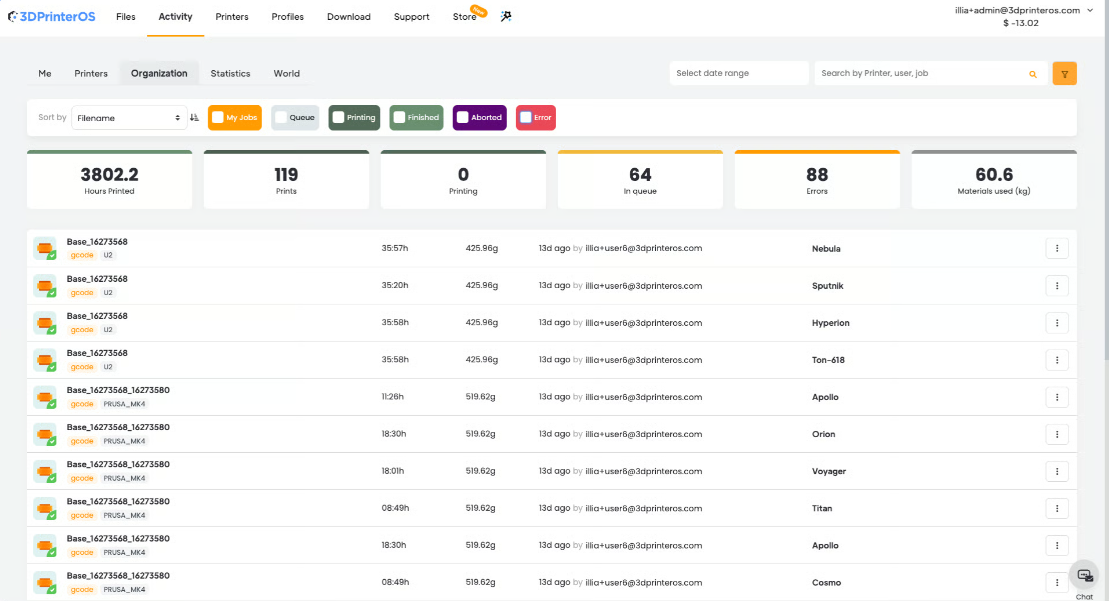
Bed clearing gets a printer ready. The queue decides what it prints next. In 3DPrinterOS, users upload and slice their files in the cloud and add them to a shared queue. Admins review, reorder and prioritize requests in one place, and jobs route to the next free compatible printer automatically. When several printers finish at once, staff can start the next job on every available printer with one click.
Four queue features matter most for continuous printing:
Pine Crest School shows what one queue can carry: whole-class projects go into a single queue across four makerspaces, and staff can run up to 35 prints at the same time.
Continuous printing raises the cost of a failure. If a print detaches at hour two and the printer keeps going, it wastes material and blocks the next job. Three habits keep that small:
Printers draw the most power while heating, so a farm that starts many jobs at once can trip a breaker. Stagger starts and check how many 3D printers you can run on one circuit before adding machines. Printers that run around the clock also reach their service intervals sooner, so schedule work by print hours; the 3D print farm maintenance checklist lists the intervals from Prusa and Bambu Lab. Track material too: 3DPrinterOS records how much filament each print uses by user, printer and group, which helps you order before a spool runs out mid-shift.
If you are building the farm from scratch, start with how to start a 3D print farm. If you already use automatic part removal, the AutoFarm3D comparison shows how a fleet platform adds roles, approvals and reports on top.
3DPrinterOS is 3D printer management software for teams that share printers. It does not remove parts from the bed. It runs the farm around that step: shared print queues with next-free-printer routing, cloud slicing, live monitoring, Print Fail Detector alerts, filament and usage reports, and roles and approvals for every user. It supports 200+ printer models and is used by 500+ companies and universities, including NASA, NIH, Google and Koenigsegg.
Continuous 3D printing means a printer starts the next job soon after the last one finishes, without long idle gaps. On a farm it combines a bed-clearing method, a shared queue that sends jobs to the next free printer, and alerts that catch failed prints early.
No. 3DPrinterOS does not eject parts. It manages the queue, routing, monitoring and alerts around whichever bed-clearing method you use, and its Bed is Not Clear status asks someone to confirm the bed is clear before the next job starts.
Queue enough jobs before staff leave, send them to printer groups rather than single printers, use tested automatic removal for repeated parts, and turn on failure alerts so someone can pause or cancel a bad print remotely.
The failed print can block the next job and waste material. Print Fail Detector sends an alert by notification and email, and staff can pause or cancel the job remotely before the queue moves on.
Printers that run more hours reach service intervals sooner. Schedule maintenance by print hours and stagger it across printer groups so the rest of the farm keeps printing.

Used by higher education, enterprises, and OEMs to manage printers, files, and users from a single, cloud-based platform

Control access, users, and print permissions by team or lab
“This close collaboration has enabled Koenigsegg to tailor the platform to their specific needs, resulting in an optimized and user-friendly system for managing their 3D printers.”

Team Leader
Koenigsegg Automotive AB
Book your personalized assessment now and get your free trial.