Matched by email
Each 3DPrinterOS user is matched to their PaperCut account by email address.


Charge users for 3D printing through the payment system you already run. 3DPrinterOS checks balances, charges when a job is queued and refunds jobs that fail or get canceled.
Prefer to keep it simple? Billing and balances also work inside 3DPrinterOS on their own.


We have an amazing group of students working on solving real-world problems using these printers, as opposed to if all these machines were sitting there collecting dust.
 Mitra AnandAdvanced Technology and Prototyping Specialist, Worcester Polytechnic Institute
Each 3DPrinterOS user is matched to their PaperCut account by email address.
The balance is checked before a job joins the queue, so users cannot print what they cannot pay for.
The cost is taken when the user adds the job to the queue, with a clear comment on the transaction.
Canceled or failed jobs are refunded for the part that did not print.
Admins can change a job cost or turn off automatic refunds and set amounts by hand.
A unique 3DPrinterOS key authenticates every call to your payment system.
Pick the system you use today and see how it connects.
If your campus already charges printing through PaperCut, 3D printing can use the same accounts and balances. Students see one balance for everything they print.
Use Stripe when users pay by card, for example in makerspaces, libraries or service bureaus that charge the public.
Connect CBORD so students can pay for 3D printing with the campus funds they already use for other services.
No external system? Set prices per gram, flat fees and balances directly in 3DPrinterOS and bill in USD, EUR, GBP or ILS.
Define how jobs are priced in 3DPrinterOS, for example per gram plus a flat fee.
Link PaperCut, Stripe or CBORD with your 3DPrinterOS key, or keep billing built in.
Users are charged when they queue a job and refunded automatically if it fails.
Connect your printer to 3DPrinterOS once and manage it from any browser.

Before a job is queued, 3DPrinterOS checks the user balance in PaperCut. If there are enough funds, the job cost is deducted and the job joins the queue.

If a job fails or is canceled, the refund is the job cost times the share that did not print. Cancel a $100 job at 99% and the user gets $1 back.
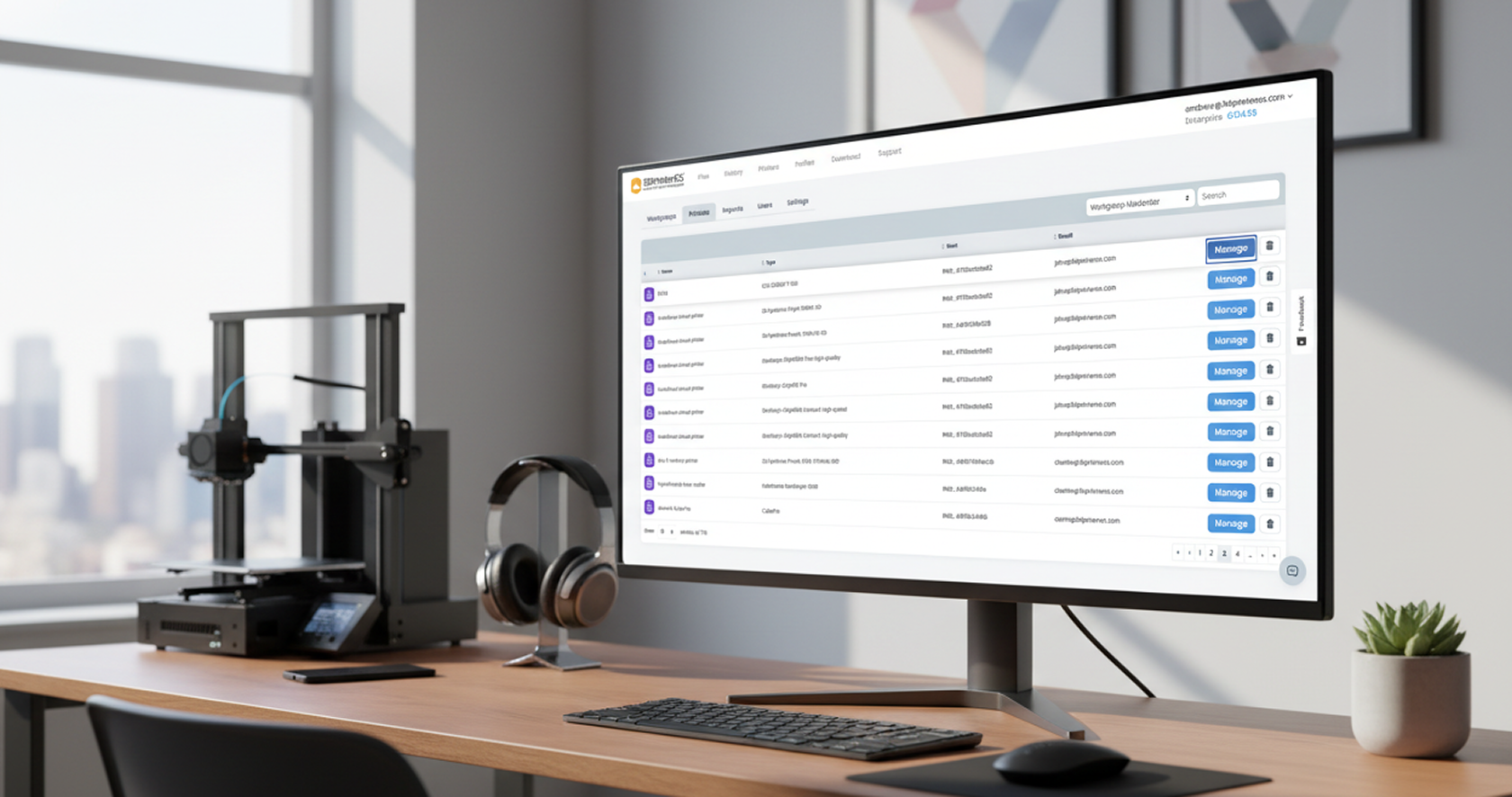
Organization admins can edit a job cost, which creates a new transaction and adjusts the balance. Students get a direct link to PaperCut to check or top up funds.
Click through queues, activity and print limits in 3DPrinterOS.
3DPrinterOS integrates with PaperCut, Stripe and CBORD, and also has built-in billing and balances.
When they add a job to the queue. 3DPrinterOS checks the balance first and only queues the job if there are enough funds.
Refund = job cost times the share that did not print. A $100 job canceled at 99% complete refunds $1.
Yes. Admins can edit a job cost, which creates a new transaction, and can turn off automatic refunds to set amounts by hand.
By the user email address, using a unique 3DPrinterOS key for API calls.
Talk to an expert about connecting your payment system.

Used by higher education, enterprises, and OEMs to manage printers, files, and users from a single, cloud-based platform

Control access, users, and print permissions by team or lab
“This close collaboration has enabled Koenigsegg to tailor the platform to their specific needs, resulting in an optimized and user-friendly system for managing their 3D printers.”

Team Leader
Koenigsegg Automotive AB
Book your personalized assessment now and get your free trial.
