
Empower students to design, create, and innovate while giving educators and administrators complete control over their 3D printing ecosystem.
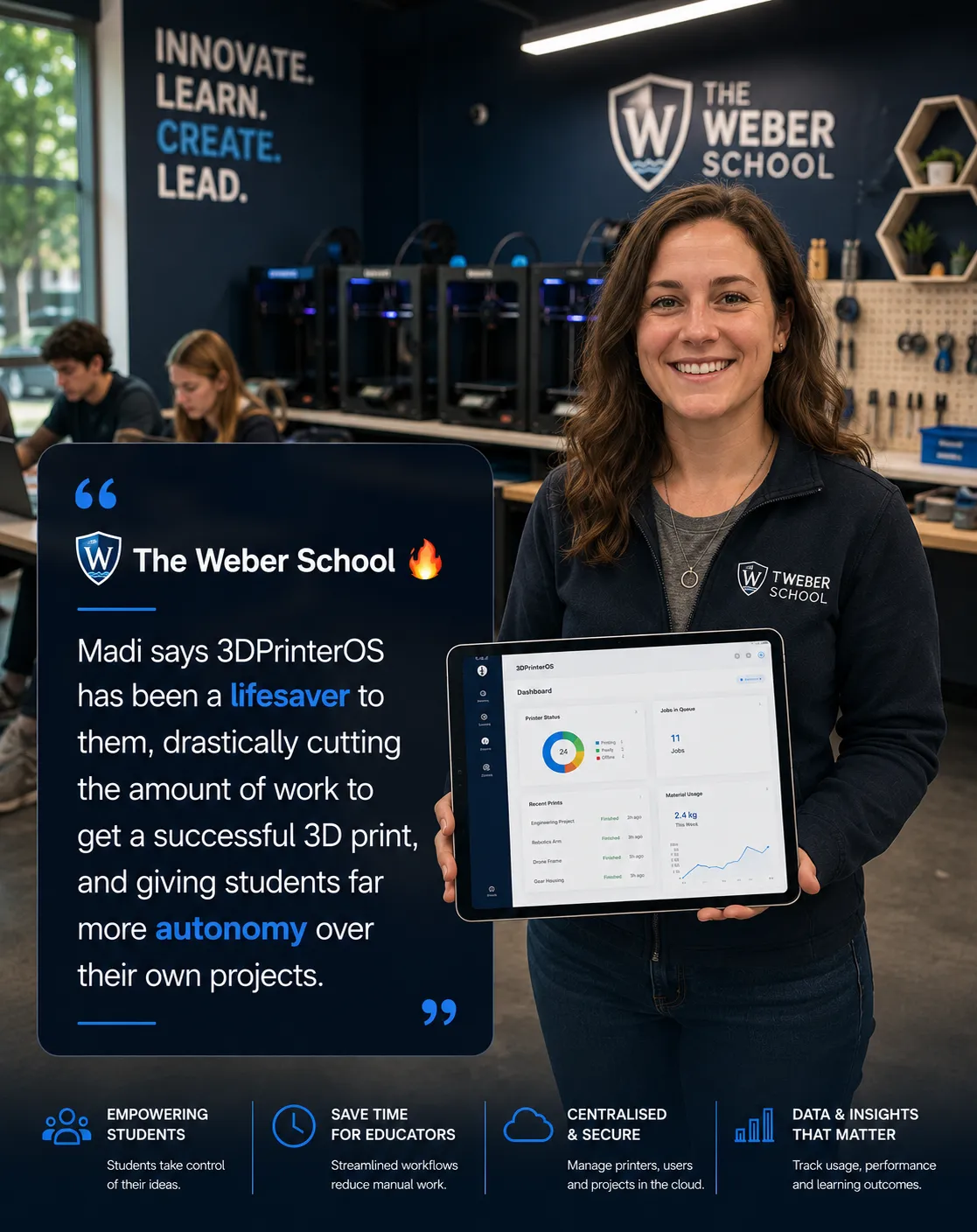
Just being able to click a few buttons and set the prints going has been huge – and we can have multiple people doing it at the same time without stepping on each other’s toes.
 Vicki Spitalnick
Innovation Specialist, Pine Crest School


In 2017, Holy Ghost Prep transformed an underused space into The BFIC, a modern makerspace that sparked a broader campus redesign. They later extended this vision into the “STEM Tower,” a connected set of biology, chemistry, and physics labs built for hands-on, design-driven learning—an environment ideally powered by 3DPrinterOS

3DPrinterOS makes it easy for schools to manage 3D printing at scale, giving administrators full visibility into print activity while reducing manual workload. Trusted by leading universities, it streamlines operations and lowers costs across entire districts.
3DPrinterOS is robust enough to run the 3D printing programs at world-class schools
3DPrinterOS gives IT and admins the ability to see what’s being printed, by whom, and when.
3DPrinterOS reduces the cost of running a 3D printing program district wide.
Vicki Spitalnick - Innovation Specialist at Pine Crest School
Users
Users 3D printing with a single software

Brian Slocum - Managing Director at Lehigh University
Enterprises and Educational Institutions
Parts Printed

Chip Bobbert,Digital Media Engineer at Duke University
Increased Utilization
Operational Efficiency Guaranteed

Print Fail Detector is the AI failure detection in 3DPrinterOS. It watches each print through the printer camera, flags likely failures such as spaghetti while the job runs, and notifies the job owner and admins, who can then pause or cancel the print remotely.
The detector can only judge what the camera sees, so each monitored printer needs a camera that meets these requirements:
Notifications are turned on per printer. Open Printer Settings for the printer and enable Use Custom Notifications, so the job owner and admins receive an alert when a likely failure is found.
When a detection arrives, users can mark it as correct or incorrect. That feedback helps train Print Fail Detector and improve its results over time.
Print Fail Detector requires an Organizational License. To enable it for your organization, contact 3DPrinterOS support. Automatic stopping is not available yet, so after an alert a person decides whether to pause or cancel the print.
Read more about AI failure detection, or see how it fits into 3D printer management software for a whole fleet.
3DPrinterOS supports more than 200 printer models from brands including Bambu Lab, Prusa, Ultimaker, Creality, Dremel, Formlabs and MakerBot, plus printers running Klipper firmware. Because the platform is vendor-neutral, you can run a mixed-brand fleet from one dashboard instead of using a separate app for each brand.
How a printer connects depends on the model. Many printers connect through the 3DPrinterOS Cloud Client running on a Raspberry Pi, ROCK Pi or PC next to the printers. Every current Bambu Lab printer works on any firmware version once LAN Only Mode is turned on, and one Raspberry Pi can host up to 15 Bambu printers. Once connected, every printer shares the same print queues, user permissions, monitoring and reports.
Files can be sliced in the browser, including on Chromebooks and tablets, with the cloud slicer engines Slicer 5, Slicer for Prusa, Bambu Slicer, MakerBot Slicer and Formlabs Slicer.
To check a specific model, search the supported 3D printers list by brand. For Bambu Lab models and their requirements, see supported Bambu Lab printers. If your printer is not listed, contact the 3DPrinterOS team before you buy.
3DPrinterOS Premium costs $19 a month for 2 printers and 1 user, and every plan starts with a free 14-day trial with no credit card required. Education and Enterprise plans are priced by custom quote, based on your printers, users and deployment, and both offer an extended trial on request.
What each plan covers:
The trial lets you connect printers, test cloud slicing and try user management before you choose. Compare plans and prices, or contact the team for a quote for your school, university or company.
Yes. 3DPrinterOS supports single sign-on through SAML, Shibboleth, OKTA and InCommon, and it can run in a private cloud, on-premise or on air-gapped servers. You can also use the managed Microsoft Azure cloud in the U.S. or Europe, and the U.S. deployment is TX-RAMP certified.
Deployment options:
With SSO, every action is tied to an authenticated user from your identity provider, so there are no shared logins, and access is removed when people leave. Role-based permissions then decide who can upload files, start prints, manage printers or view analytics, and the print history records the user, file, printer, material and outcome of every job.
See the security and compliance overview or the on-premise deployment page for details.
In 3DPrinterOS, admins place students and staff in workgroups, choose which printers each group can use, and can require approval before any job prints. Each user can get a balance or a printing limit, and prints can be charged per gram, per job or as a flat fee, with failed prints refunded automatically.
A typical school or university setup works like this:
Students log in with the school's single sign-on, submit jobs from a browser, and the queue sends approved jobs to the next free printer. Reports then show usage and cost per user, printer and group, which helps with lab budgets and chargebacks.
See how this works for 3D printing in education, or read about billing users.
A slicer turns a 3D model into G-code for one printer. OctoPrint is free, open-source software that controls and monitors one printer per host, usually a Raspberry Pi. 3DPrinterOS manages a whole fleet from the cloud: it includes slicing, then adds shared queues, users and permissions, approvals, billing, failure detection and reporting.
How the three compare:
Many teams start with a slicer and OctoPrint on one or two printers. When a lab, school or company shares several printers between many people, it needs the user, queue and reporting layer that a single-printer tool does not have.
Read the full OctoPrint alternative comparison, or see what 3D printer management covers.
Connect every printer to one vendor-neutral platform. 3DPrinterOS supports more than 200 printer models, including Bambu Lab, Prusa, Ultimaker, Creality, Dremel and Klipper printers. Once they are connected, all brands share the same queues, permissions, monitoring and reports, so you no longer switch between one app per brand.
Steps to set up a mixed-brand fleet:
From then on you watch live status, temperatures, progress and camera feeds for every printer in one browser tab, and reports show usage and cost across brands.
Learn how to manage multiple 3D printers with 3DPrinterOS, or check your models on the supported printers list.

Used by school districts to run 3D printers across every campus, with Chromebook-friendly cloud slicing, teacher approvals and district-wide reporting

Let teachers approve student prints and manage classes by school
“Just being able to click a few buttons and set the prints going has been huge – and we can have multiple people doing it at the same time without stepping on each other’s toes.”
Innovation Specialist
Pine Crest School
Book your personalized assessment now and get your free trial.
Limited-time offer
Apply now and save up to 50% on your first year of 3DPrinterOS
Used by higher education, enterprises, and OEMs to manage printers, files, and users from a single, cloud-based platform
Control access, users, and print permissions by team or lab
“This close collaboration has enabled Koenigsegg to tailor the platform to their specific needs, resulting in an optimized and user-friendly system for managing their 3D printers.”

Team Leader
Koenigsegg Automotive AB
Book your personalized assessment now and get your free trial.

