Printers and users
Allocate access for specific users and printers, with queueing or printing rights per group, course or department.

3DPrinterOS is 3D printing program software for schools, universities and makerspaces. It gives every department access to your printers through one browser platform, while staff control who can print, approve jobs and report on every print.
Works with Bambu Lab, Prusa, Ultimaker, Creality, Dremel and 200+ other printer models.
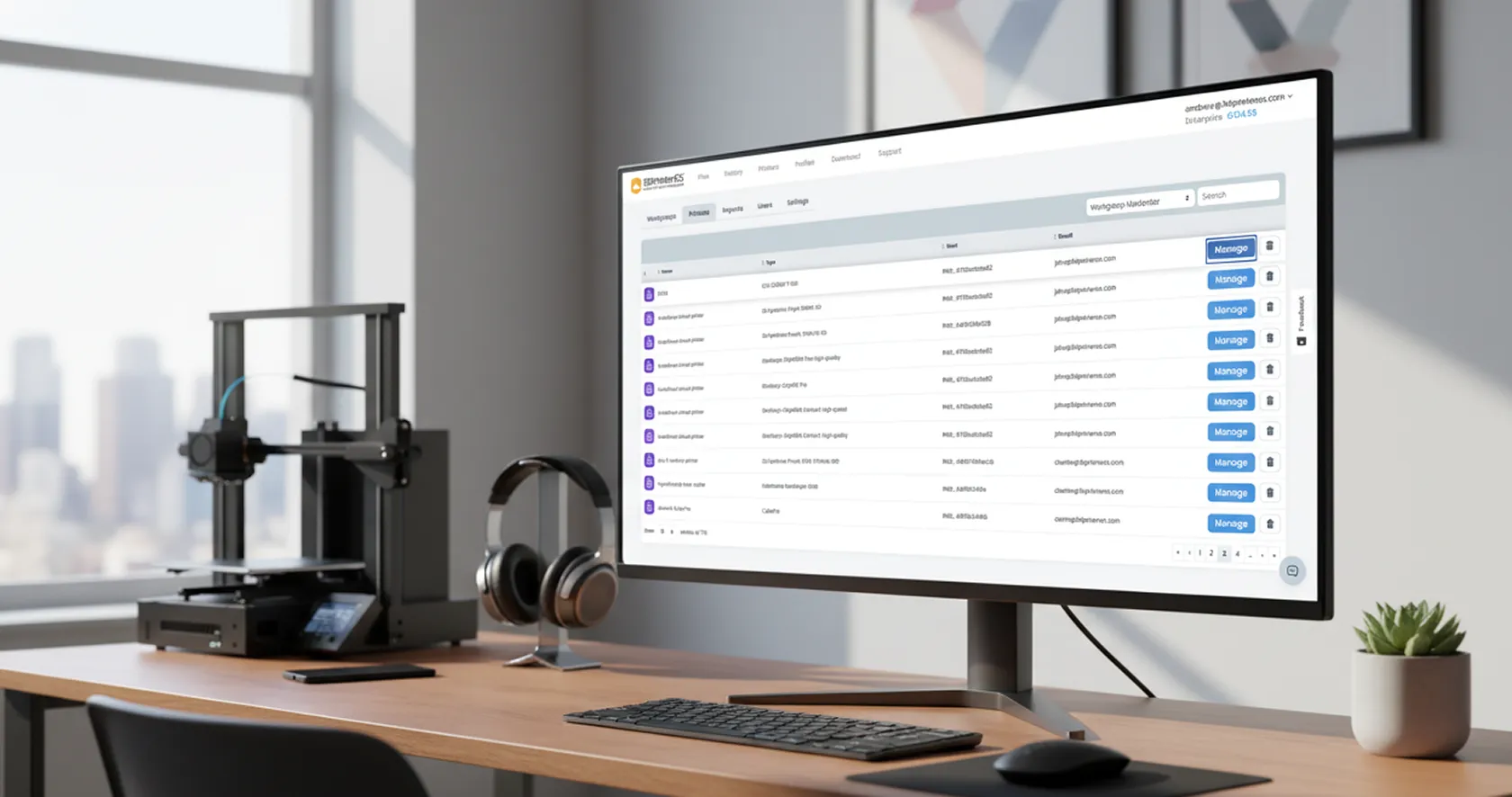


3D printing program software is a central platform for running an organization's 3D printing service: who can print, on which printers, with which files, and at what cost. 3DPrinterOS gives a school, university or makerspace one browser dashboard for user access, queues, approvals, remote monitoring and reporting across every lab and department.
Open 3D printing to more students and departments without adding staff on the lab floor.
Allocate access for specific users and printers, with queueing or printing rights per group, course or department.
Students and staff sign in with their existing campus accounts, so nobody manages a separate password list.
Staff approve jobs before they start, and per-user limits and balances keep material use under control.
Easily accessible through a browser with no download needed. Students submit and slice from any device.
Track, monitor and audit every part of the 3D printing process, with usage by printer, user, course or department.
Live status and camera feeds let a small team watch every lab printer, and AI alerts flag failed prints.
Add your labs, departments and printer groups in 3DPrinterOS.
Connect each lab's printers through a Raspberry Pi or computer running the 3DPrinterOS client.
Turn on single sign-on, assign roles and set approvals, limits and locked slicing profiles.
Share one link. Students upload, slice and submit; staff approve and watch the queue.
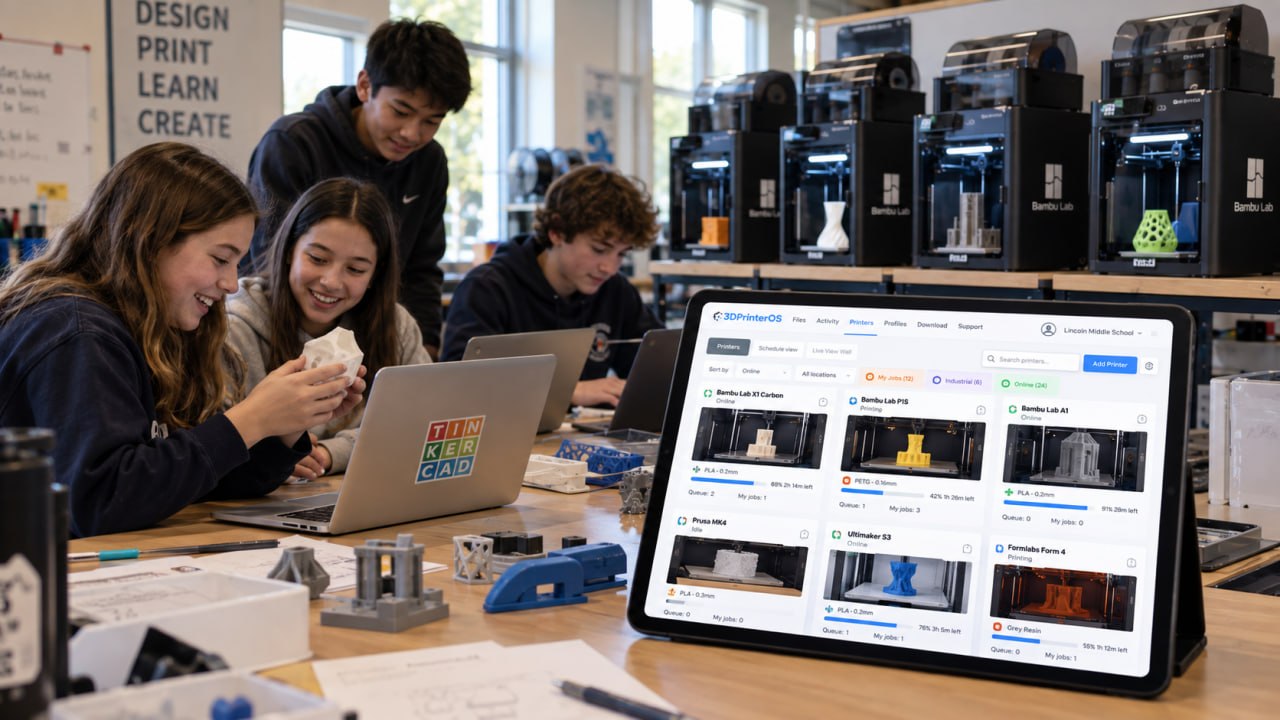
Grant access to 3D printing across disciplines. Each department or course gets its own group, printers and limits, and staff see one dashboard for the whole program.
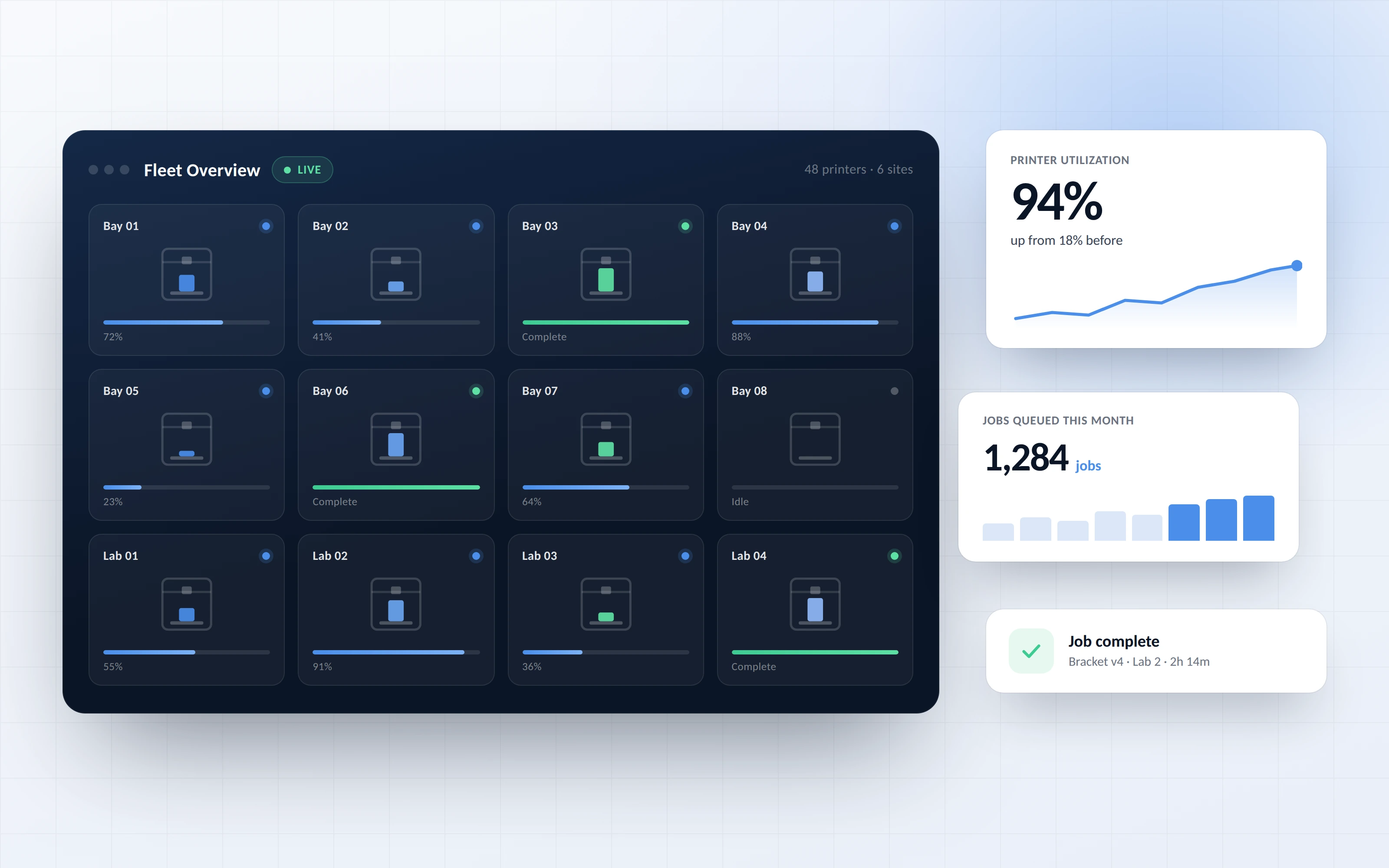
Every job is linked to a user, printer, material and cost. Report on usage by printer, user, course or department, and run chargebacks where your program bills for material.
Campus-wide programs with single sign-on, approvals and per-student limits.
Higher education →Classroom printing with teacher approvals and student accounts.
K-12 schools →Shared public printers with user accounts and approvals.
Libraries →Shared printers with member access and usage reports.
Makerspaces →It is a platform that runs an organization's whole 3D printing service: user access, printer groups, approvals, queues, monitoring and reporting, from one browser dashboard instead of printer by printer.
No. 3DPrinterOS is accessible through a browser with no download needed, so students upload, slice and submit prints from any device.
Yes. You allocate access for specific users and printers, with queueing or printing rights per group, plus approvals and print limits.
Yes. Students and staff can sign in with their existing campus accounts through single sign-on.
Yes. Every job is linked to a user, printer, material and cost, so you can report and charge back by printer, user, course or department.
3DPrinterOS is vendor-neutral and supports 200+ printer models, including Bambu Lab, Prusa, Ultimaker, Creality and Dremel.

Used by higher education, enterprises, and OEMs to manage printers, files, and users from a single, cloud-based platform

Control access, users, and print permissions by team or lab
“This close collaboration has enabled Koenigsegg to tailor the platform to their specific needs, resulting in an optimized and user-friendly system for managing their 3D printers.”

Team Leader
Koenigsegg Automotive AB
Book your personalized assessment now and get your free trial.
