3D Print Farm Maintenance Checklist: Per-Print, Weekly and Per-Hour Tasks
A 3D printer maintenance schedule for print farms: per-print, weekly, monthly and per-hour tasks from Bambu Lab and Prusa, plus how to service a fleet without downtime.





Short answer: A 3D print farm maintenance checklist splits work into four layers: checks before every print, weekly cleaning of fans and extruder gears, service every few hundred print hours (rods, bearings, belts, fans), and electronics checks at 600-800 hours. Take each interval from the manufacturer's maintenance page for that model, then stagger tasks so most printers keep printing.
One printer can be maintained when it starts acting up. Twenty or two hundred cannot. On a farm, the same task comes due on many machines at once, people change shifts, and a skipped wipe on one printer turns into a failed job for a customer. This guide gives you a 3D printer maintenance schedule built from published manufacturer guidance, using Bambu Lab's X1 maintenance recommendations and Prusa's regular maintenance guide for the MK4/S and MK3.9/S as worked examples, plus a process for running it across a fleet without stopping production.
There is no universal maintenance interval. The two guides used here do not even measure time the same way. Prusa counts printing hours: some tasks every 200 hours, electronics every 600-800 hours. Bambu Lab mixes calendar time (weekly, monthly, every three months) with material use (every 5 rolls of ABS or ASA). Bambu Lab also says certain parts must not be greased: grease on the X1's carbon rods causes resistance and makes cleaning harder. A generic checklist would get that wrong.
So build your checklist per printer model. If you run a mixed fleet, keep one task list per model, not one list for the whole room.
These are short checks the operator does when clearing a finished job and starting the next one.
| Task | What to check | Source |
|---|---|---|
| Build plate | Clean the sheet with the method for its surface. Prusa allows acetone only sparingly and only on the Smooth sheet, never on Textured or Satin. The PA Nylon sheet must not be cleaned with acetone, IPA or other alcohol-based solvents, including window cleaners. | Prusa |
| Debris | Remove debris around the parts and under the heatbed with a brush, small broom or vacuum. Prusa notes it builds up after several hours of printing. | Prusa |
| Hotend | Heat the nozzle to 250 °C for 3-5 minutes and scrape old plastic off the nozzle and heater block with a small brass brush, keeping clear of the hotend cables. Let it cool (about 10 minutes) and check the display before touching it. | Prusa |
| Hotend thumb screws | With the printer cold and off, hand-tighten only, no tools. There should be no vertical play in the nozzle and no rotational play in the heater block. | Prusa |
| Nozzle wiper | Check for filament debris and damage on the PTFE side. It should sit horizontally. Replace it with a spare if damaged. | Bambu Lab X1 |
Prusa groups these as sporadic maintenance for the MK4/S and MK3.9/S:
Prusa's electronics check: power off and unplug the printer, then check and reseat the connectors on the xBuddy board, Loveboard, heatbed, PSU and xLCD. Screw-type connectors should be fully tight. Press the latch on Molex connectors before pulling them, or the connector may be damaged.
Some intervals depend on what you print. On the X1, Bambu Lab says to check the filament cutter blade every 3-5 rolls for PLA, PETG, ABS or PC, but after only 1-2 rolls with abrasive PA+CF or PA+GF. The blade can dull after about 5,000-7,000 cuts without visible deformation. The Micro Lidar needs cleaning every 3-5 days when printing ABS. If one bank of printers runs engineering materials, give that bank its own shorter schedule.
Interactive fleet maintenance checklist
Tick tasks as you go, then plan when each printer is due. Intervals are the ones quoted above from Prusa and Bambu Lab; always follow your own printer's manual.
When is each printer due?
If every printer gets its 200-hour service in the same week, you lose capacity all at once. Split the fleet into groups and give each group a different service day. Taking one printer out of a group of eight costs an eighth of that group's capacity for an hour, not the whole room for a day.
Farm printers run far more hours than a hobby machine, so calendar intervals alone drift out of step with real wear. Log machine hours per printer and service each unit when it crosses its threshold. 3DPrinterOS reports track filament, machine hours, per-job cost and utilization by printer, user and department, which gives you the hour count to schedule against.
Stock the items the manufacturer tells you to replace when worn: nozzle wipers, extruder gears, cutter blades, silicone socks and carbon filters. A printer waiting for a part is downtime you could have avoided.
Record the printer, the task, the date, the machine hours and who did it. A log tells you whether a printer that keeps failing has been serviced, and whether your intervals are too long. Keep it next to your job history so you can compare failures with maintenance dates.
Operators handle the before-every-print checks. A technician owns the weekly, 200-hour and electronics work. Write that down so a task is never "someone's job".
Do not let jobs land on a printer that is half disassembled. In 3DPrinterOS, a printer set to Inactive does not appear on the Printers page until you toggle it back to active. The Bed is Not Clear status requires someone to confirm the bed is clear before the next job starts, which also stops a job starting on a printer left full of tools or parts.
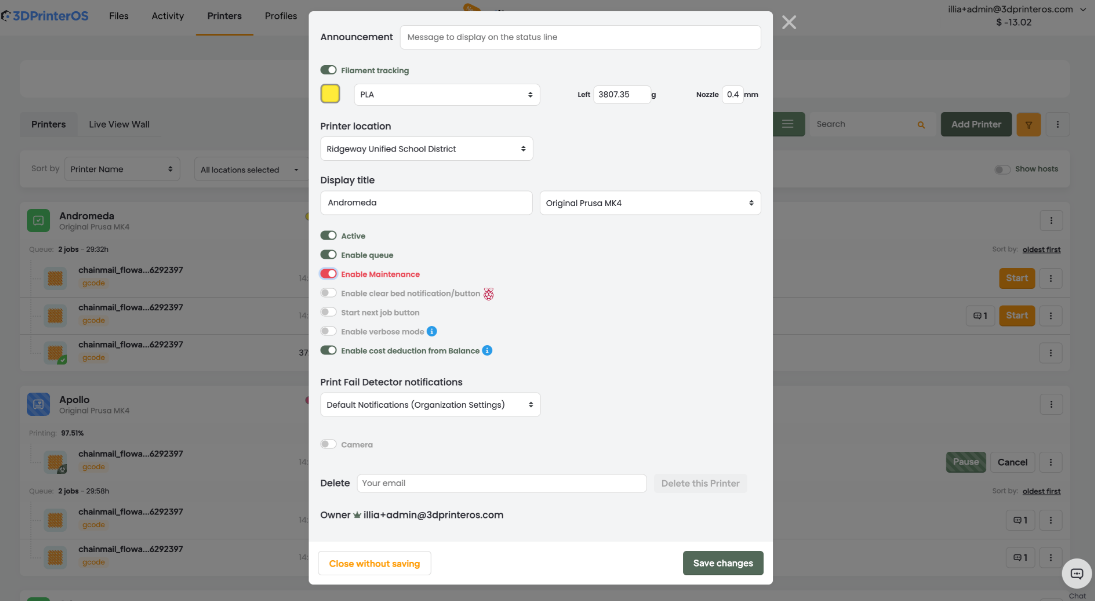
3DPrinterOS does not replace the manufacturer's maintenance guide. It helps you run the farm around it. 3D printer farm management software from 3DPrinterOS sends jobs to a printer group instead of one machine, so the next free printer picks up the job while another unit is being serviced. It shows live status, temperatures, progress and camera feeds for every printer, and its AI failure detection alerts you when a print fails. Printing history logs every job, and reports include job history and success rates, which helps you spot a printer whose results are slipping. 3D printer monitoring software adds live video and print failure alerts. For mixed fleets, 3D printer management software from 3DPrinterOS supports 200+ printer models, including Bambu Lab, Prusa, Ultimaker and Klipper machines. When a printer has a connection or job problem, the "Report Printer Issue" option sends its logs to 3DPrinterOS support.
Follow the manufacturer for each model. Prusa sets MK4/S and MK3.9/S service at every 200 print hours and electronics checks at 600-800 hours. Bambu Lab sets weekly, monthly and three-month tasks for the X1, with shorter intervals for ABS, ASA and abrasive filaments.
It depends on the model. Prusa says to lubricate the MK4 smooth rods with a small amount of Prusa Lubricant. Bambu Lab says not to grease the X1 carbon rods, and to clean them with IPA instead.
Bambu Lab says to replace the activated carbon air filter every three months at about 8 hours of daily use, or monthly for production use.
No. Prusa allows acetone sparingly on the Smooth sheet only, never on Textured or Satin. The PA Nylon sheet must not be cleaned with acetone, IPA or other alcohol-based solvents.
Stagger service across printer groups, schedule by machine hours, keep spare wear parts in stock and log every task. Group queues in 3DPrinterOS send jobs to the next free printer, so the rest of the group keeps printing while one unit is serviced.

Used by higher education, enterprises, and OEMs to manage printers, files, and users from a single, cloud-based platform

Control access, users, and print permissions by team or lab
“This close collaboration has enabled Koenigsegg to tailor the platform to their specific needs, resulting in an optimized and user-friendly system for managing their 3D printers.”

Team Leader
Koenigsegg Automotive AB
Book your personalized assessment now and get your free trial.