How to Find the IP Address of Your Raspberry Pi (5 Easy Ways)
Five ways to find a Raspberry Pi's IP address, with or without a screen, plus how to keep it from changing.
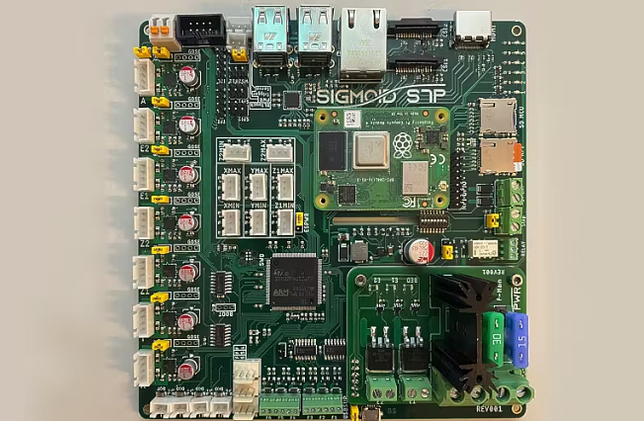




Short answer: on the Raspberry Pi itself, open a terminal and run hostname -I. If the Pi has no screen, find it in your router's list of connected devices, run ping raspberrypi.local from another computer, or scan your network with a tool such as Fing or Angry IP Scanner.
Knowing your Pi's IP address is the first step for SSH, troubleshooting a print server or checking a Raspberry Pi 3D printer setup. Below are five reliable methods, from easiest to most technical.
hostname -I. The first number, for example 192.168.1.42, is the Pi's local IP address.ip addr and look for the inet line under eth0 (wired) or wlan0 (Wi-Fi).While you are there, create a DHCP reservation so the Pi always keeps the same address.
From a computer on the same network, run ping raspberrypi.local, replacing raspberrypi with your Pi's hostname if you changed it in Raspberry Pi Imager. The reply shows the IP address. This uses mDNS, which works by default on macOS and Linux and on most current Windows versions.
Apps such as Fing (phone) or Angry IP Scanner (desktop) list every device on your network with its name and maker. Look for the Raspberry Pi entry.
arp -a lists devices your computer has recently talked to.nmap -sn 192.168.1.0/24 scans the whole subnet. Change the range to match your network.A Raspberry Pi is a low-cost way to connect a USB 3D printer to the cloud without a PC beside each machine. With 3DPrinterOS you request a Raspberry Pi image from the Printers tab, write it to an SD card and plug the printer in. The printer then appears in your dashboard for remote printing, queues and monitoring. Follow the full Raspberry Pi 3D printing guide, or see how labs manage many 3D printers this way.
If you can reach the Pi's terminal, run hostname -I. Without a screen, open your router's list of connected devices or ping the Pi's hostname, for example ping raspberrypi.local.
Raspberry Pi OS has long used raspberrypi as the default hostname, but Raspberry Pi Imager lets you set your own during setup, so check what you chose.
Most routers hand out addresses with DHCP, which can change after a restart. Create a DHCP reservation for the Pi in your router so it always gets the same address.
For normal use, no. The 3DPrinterOS Raspberry Pi image connects to the cloud on its own once the Pi is online. The IP address helps when you want to troubleshoot or log in to the Pi directly.

Used by higher education, enterprises, and OEMs to manage printers, files, and users from a single, cloud-based platform

Control access, users, and print permissions by team or lab
“This close collaboration has enabled Koenigsegg to tailor the platform to their specific needs, resulting in an optimized and user-friendly system for managing their 3D printers.”

Team Leader
Koenigsegg Automotive AB
Join us today and become one of our partners