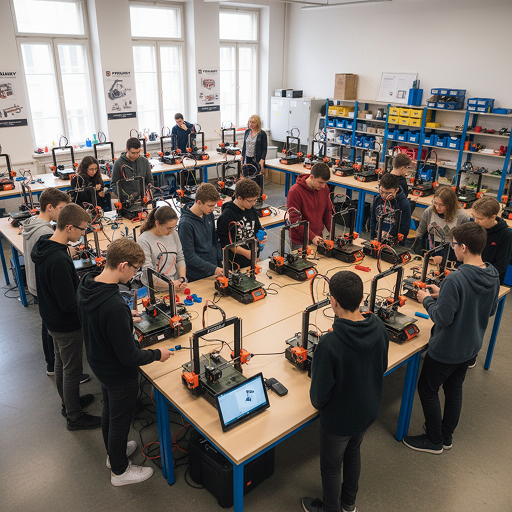

Running a LAN only 3D printer farm means keeping all printer communications inside your local network. This setup is ideal for on-premises security, faster connectivity, and reliable uptime. With 3DPrinterOS, you get a centralized dashboard to manage printers, users, queues, and jobs without exposing sensitive data externally. You can read more about user management here.
Setting Up Your 3D Printer Farm
Before managing your farm, you need to connect your printers to the platform.
Step-by-Step Printer Connectivity
- Install the 3DPrinterOS Client on your device. It is compatible with Windows, Ubuntu, Raspberry Pi, or macOS.
- Go to the Printers Page and click Add Printer.
- Select the models and add them in bulk for efficiency.
- The printers will then appear as Idle on the Printers Page once connected.
Use USB hubs to connect many printers to a single host device so your LAN only print farm stays organized.
User Roles, Permissions, and Quota Management
In a shared printer farm, not every user needs the same access. 3DPrinterOS allows fine-grained control.
User Types and Permissions
- Organization Admins have full access to printers, roles, and settings.
- Advanced Users have limited elevated permissions for workflows.
- Regular Users have standard access to print or queue jobs.
Set quotas per user or organization-wide to limit monthly prints and configure balances for internal billing or third-party payment systems like PaperCut.
For full details on user management, check the User Management page.
Managing Print Queues and Job Flow
Working inside a LAN does not mean sacrificing advanced features.
Printer and Queue Controls
- Move jobs between printers.
- Monitor queues with live job status and estimated times.
- Disable queues to stop submissions during maintenance.
3DPrinterOS supports automation features like AutoQueue Printing, which assigns jobs to the next available printer.
Best Practices for LAN Only Print Farm Uptime
- Use a dedicated Raspberry Pi or SBC to run the 3DPrinterOS Client. You can follow the installation guide here.
- Keep printer drivers and firmware up to date.
- Assign workgroups to segment users and printers efficiently. You can read more about workgroups here.
Conclusion
Managing a LAN only 3D printer farm does not have to be chaotic. With 3DPrinterOS, you get powerful user control, streamlined printer setup, and real-time monitoring, all without exposing sensitive data outside your local network.
Explore more about printer setups and user roles in 3DPrinterOS: