
Robotics Teams Iterate Faster With Model Version Control
Robotics designs change after every test. Model version control and recorded print jobs make sure the right revision reaches the printer.
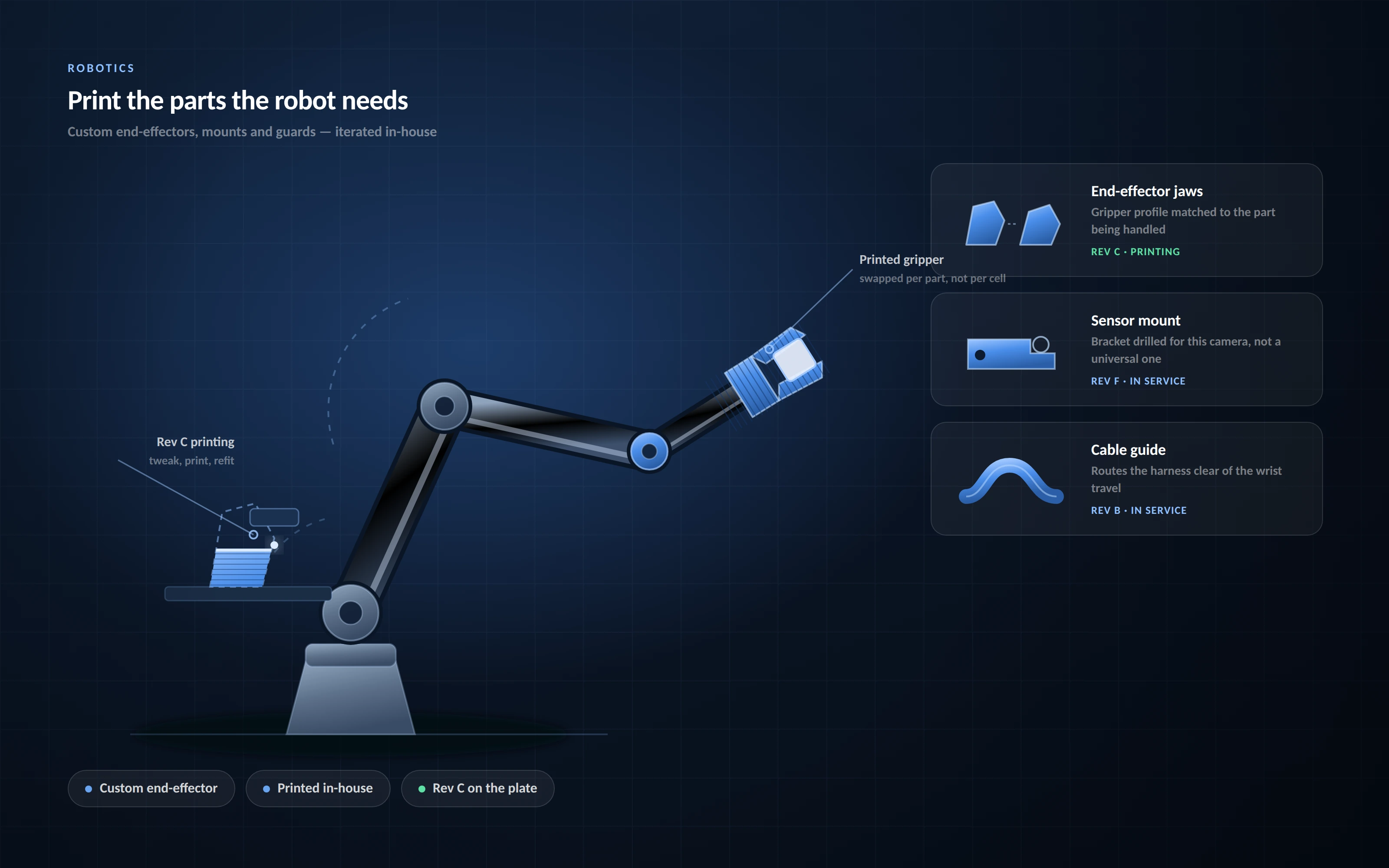



How many test days has your team lost to a part printed from the wrong file? In robotics, designs move fast. A gripper finger changes after one test. A sensor mount shifts after a wiring review. Without model version control, those small edits pile up until the printer receives an outdated file and nobody notices until the part doesn't fit.
In short: model version control means keeping every revision of a printable part in one tracked history, with clear labels, change notes, and a record of which revision was actually printed. For robotics teams, it is the difference between learning from each test and repeating the same mistake.
This guide explains why robotics models change so often, how teams prepare functional parts, and how a shared, tracked workflow keeps the right revision moving from CAD to the test bench. If you are evaluating platforms, see how 3DPrinterOS supports robotics teams.
A robot is a system of interdependent parts. Change one component, and its neighbors often need new geometry too. Swap a motor, and the mount, shaft coupler, and surrounding housing may all need revisions.
Testing adds even more change. A printed gripper slips on a test object. A wheel hub cracks under load. Each result sends the model back to CAD for another adjustment. Common triggers for a new revision include:
This pace is exactly why robotics teams print in-house. It is also why file control becomes an operational concern rather than an administrative extra.
Robotics parts carry loads, hold alignment, and survive repeated assembly. That makes preparation more demanding than printing a display model. Three decisions shape the result:
In 3DPrinterOS, Magic Fix converts supported model formats to STL and analyzes, repairs, and orients models for the selected printer. Teams save tuned slicing settings as reusable profiles in the cloud slicer, and organization admins decide which profiles each workgroup can use. That keeps a load-bearing profile from being used for a quick fit check, and vice versa.
For supported FDM files, the Toolpath Viewer lets users inspect the sliced job layer by layer before printing. Catching a missing support or thin wall here costs seconds. Catching it after a ten-hour print costs material and a test day.
A revision only helps if people can find it, compare it, and trust it. File names like "arm_final_v3_fixed" fail that test quickly. Sound model version control answers four questions without a meeting:
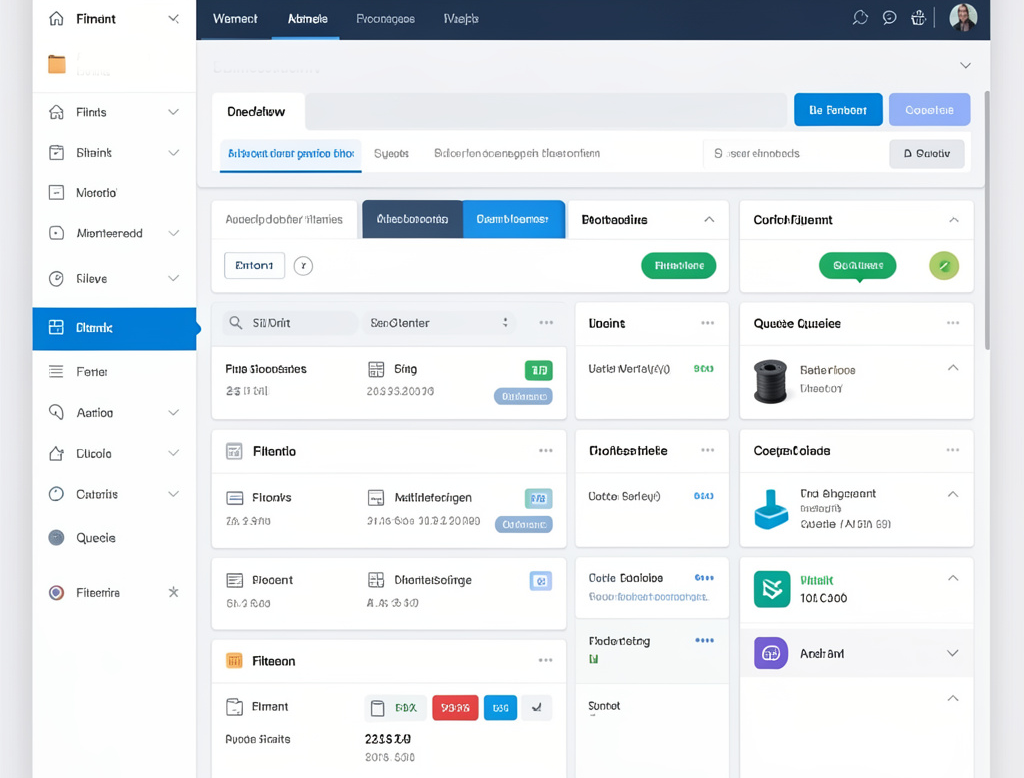
3DPrinterOS groups related files into Projects. When a user modifies and saves an STL model, the platform creates a new file, and the original and new file sit together in the project. That project works as the version history for the part. The Files page shows who uploaded each file and when, and hovering over a sliced file shows its printer type, layer height, and estimated print time.
Tooling works best with a simple convention on top. Here is one that scales from a student team to an R&D group:
| Convention | Example | Why it helps |
|---|---|---|
| One project per part or subassembly | Gripper-Finger-Left | Every revision of a part lives in one place |
| Revision in the file name | gripper-finger-L_revD.stl | Anyone can see which revision a job used |
| Project colors by mechanism | Drivetrain = blue, End effector = orange | Faster scanning in a busy workspace |
| Change note at submission | "Rev D: +0.2 mm bearing clearance after fit test" | Ties the print to the reason it exists |
The people who design robotics parts often aren't the ones who print and test them. Mechanical designers, test engineers, and lab staff each work on the same file at different times. Email attachments and loosely managed shared folders make that handoff fragile. Copies multiply, and nobody can confirm which revision the tester printed.
3DPrinterOS lets users share a single file or an entire project by email, or with a whole workgroup at once on an organizational license. Several controls protect the design along the way:
These controls suit university robotics labs with rotating student members, and enterprise R&D teams working on unreleased designs. Test staff get exactly what they need to print, without copies leaking onto USB drives. For programs with stricter handling rules, the same pattern applies in defense design-file control.
Wrong prints are rarely about carelessness. They usually come from workflow gaps that make the old file easier to grab than the new one:
Old sliced files deserve special attention. The model may be updated, yet an older G-code file still sits in a folder, ready to print. Nothing about it looks wrong until the part fails to fit.
A cloud workflow closes most of these gaps. Files live in one place instead of on individual machines. Slicing happens in the cloud with shared profiles. The Toolpath Viewer gives one last look before a job starts. Add clear revision labels and a quick pre-submission check, and outdated prints become rare.
Tracking the model is only half the record. Teams also need to know which revision was printed, on which printer, and how it performed. That record settles questions after a test: did the gripper fail because of the design or the print? Was the weak arm printed with the approved profile?
3DPrinterOS keeps job details that support this record:
When a print fails, users can set its status to Error so the job is marked as Failed, which keeps history and statistics accurate. Users can also restart finished, canceled, or failed jobs on a chosen printer, so reprinting a validated revision for a repeat test takes a couple of clicks.
Over time, this history becomes a design asset. Engineers can tie test outcomes to specific revisions and settings instead of relying on memory.
Robotics models will keep changing, and that pace is a strength. The goal is not fewer revisions. The goal is a clear trail from each CAD change to the part on the test bench. Three habits make that trail possible:
A practical first step: audit where your team's current models and sliced files actually live. If the answer includes personal laptops and USB drives, start there. For the preparation side of the workflow, see what makes a 3D model ready to print.
Book a demo to see how 3DPrinterOS supports model version control, cloud slicing, and print job records for your robotics program.
In-house printing turns a CAD change into a testable part on site, often the same day. Teams can test, adjust, and reprint without waiting on outside machining.
Model preparation, tested slicing profiles, a tracked revision history, controlled file sharing, and a record of every print job tied to the revision it used.
Yes. Recipients cannot download files shared in 3DPrinterOS, and the owner can limit how many times a shared file is printed.
Keep files in one central workspace, label the approved revision, use shared slicing profiles, and retire old sliced files. Confirm the revision before previewing and submitting the job.
Yes, for files sliced on 3DPrinterOS. Job details also include logs, submission notes, and a time lapse when a camera is enabled.

Used by higher education, enterprises, and OEMs to manage printers, files, and users from a single, cloud-based platform

Control access, users, and print permissions by team or lab
“This close collaboration has enabled Koenigsegg to tailor the platform to their specific needs, resulting in an optimized and user-friendly system for managing their 3D printers.”

Team Leader
Koenigsegg Automotive AB
Join us today and become one of our partners




.png)
