UP Mini
3D Printer Software
3DPrinterOS is UP Mini 3D printer software for the cloud. Connect your UP Mini for cloud slicing, remote printing and simple job management across users. It works in your browser.
Start a 14-day free trial, no credit card →

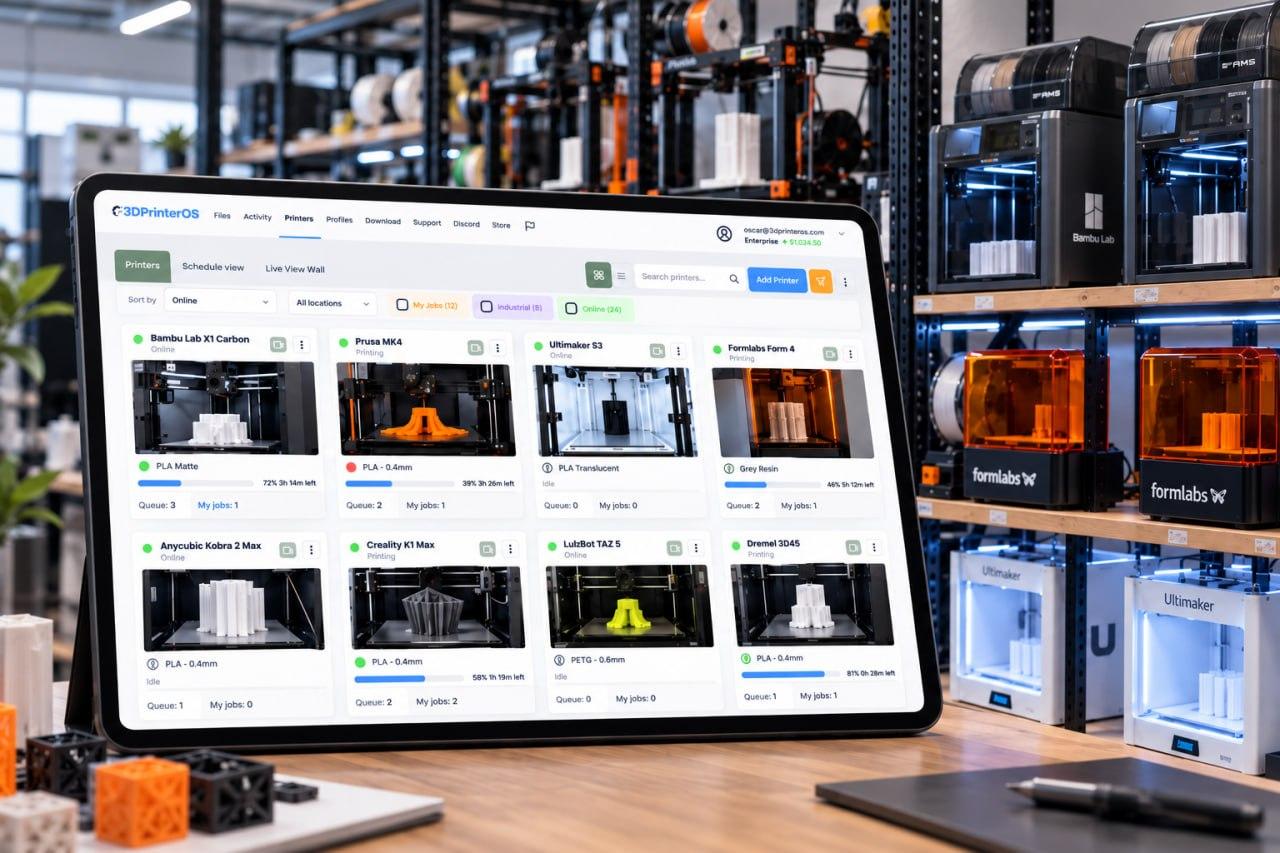
Interactive illustration. Real jobs run in 3DPrinterOS Cloud.
What is the best software for the UP Mini?
UP Mini cloud printing means preparing and sending jobs over the internet instead of from one computer. 3DPrinterOS slices your model in the cloud, starts the print with remote printing and gives every user one dashboard and a clear queue, so a small shared printer does not become a bottleneck.
| Printer | UP Mini (UP Mini 2: check the supported 3D printers list) |
|---|---|
| Software type | Browser-based, nothing to install |
| Cloud printing | Cloud slicing plus remote printing |
| File prep | Scale, orient and repair before you slice |
| Shared use | User management, one dashboard, a clear queue |
| Language | English and German (UP Mini 3D Drucker) |
UP Mini cloud printing explained
UP Mini cloud printing means you prepare and send jobs over the internet, not from one computer. With 3DPrinterOS you slice in the cloud and start prints with remote printing.
The printer stays where it is. A job can start from home, a classroom or another campus building.
UP Mini 3D Drucker Software
Many UP Mini users search in German. The 3DPrinterOS site has a German version of this page: open the UP Mini 3D Drucker page. German-speaking teams can use that version for navigation and help.
Search terms differ by country, but the printer and the platform are the same. The core workflow is the same: upload, slice and print.
Small printer, shared workflow
The UP Mini is small, but the work around it can get crowded. Several people send files. Someone needs to see what is printing.
- One dashboard for everything that is printing
- User management so every person has their own login
- A clear queue that keeps one small printer from becoming a bottleneck
- Fewer failed prints: scale, orient and repair models before you slice, so a bad file does not waste a spool
How to Print on a UP Mini with 3DPrinterOS
From file to print on a UP Mini, in four steps.
Upload your model in the browser
Every file version stays in your account, so a team can reprint without hunting for it.
Slice it with the cloud slicer
Repair and orient first. A small printer has little room for error.
Send it to the UP Mini
Start the job from home, a classroom or another campus building.
Check progress from the dashboard
See what is printing and what is waiting.
Who Uses 3DPrinterOS with the UP Mini?
Pick your team to see what changes.
Education with a UP Mini
Schools and universities share one UP Mini between many learners. Public makerspaces and libraries share the same problem: many visitors and one small printer.
Enterprise with a UP Mini
Enterprise teams keep a record of every print.
OEMs with a UP Mini
OEMs manage printers on behalf of customers.
Teams That Run Shared Printers on 3DPrinterOS

This close collaboration has enabled Koenigsegg to tailor the platform to their specific needs, resulting in an optimized and user-friendly system for managing their 3D printers.

Dublin City University
230 users and 2,353 prints in a single semester, with fair queues.

The Weber School
200+ yearly users, 2,400+ prints and 10,000+ printing hours on 11 printers.

Pine Crest School
3D printing for 2,699 students, with up to 35 prints sent at once.
Running more than one printer?
Every printer joins the same account, queue and dashboard. Setup assistance is included.
Software for other popular printers
UP Mini Software FAQ
Is there software for the UP Mini 3D printer?
Do I need to install anything?
Does it support the UP Mini 2?
Can I add more printers later?
Is there a German version of this page?
Ready to connect your UP Mini?
Book a demo and see UP Mini cloud printing with a shared queue and one dashboard.
Already have an account? Open 3DPrinterOS Cloud →


