Remote uploads
Users upload files from anywhere with an internet connection, so nobody waits in line at the printer.

3DPrinterOS is 3D printer workflow management software that replaces queues at the printer, emailed files and manual tracking with one cloud workflow. Users upload from anywhere, jobs flow through shared queues and approvals, and every print is tracked to a person and a printer.
One workflow for Bambu Lab, Prusa, Ultimaker, Creality, Dremel and 200+ other printer models.
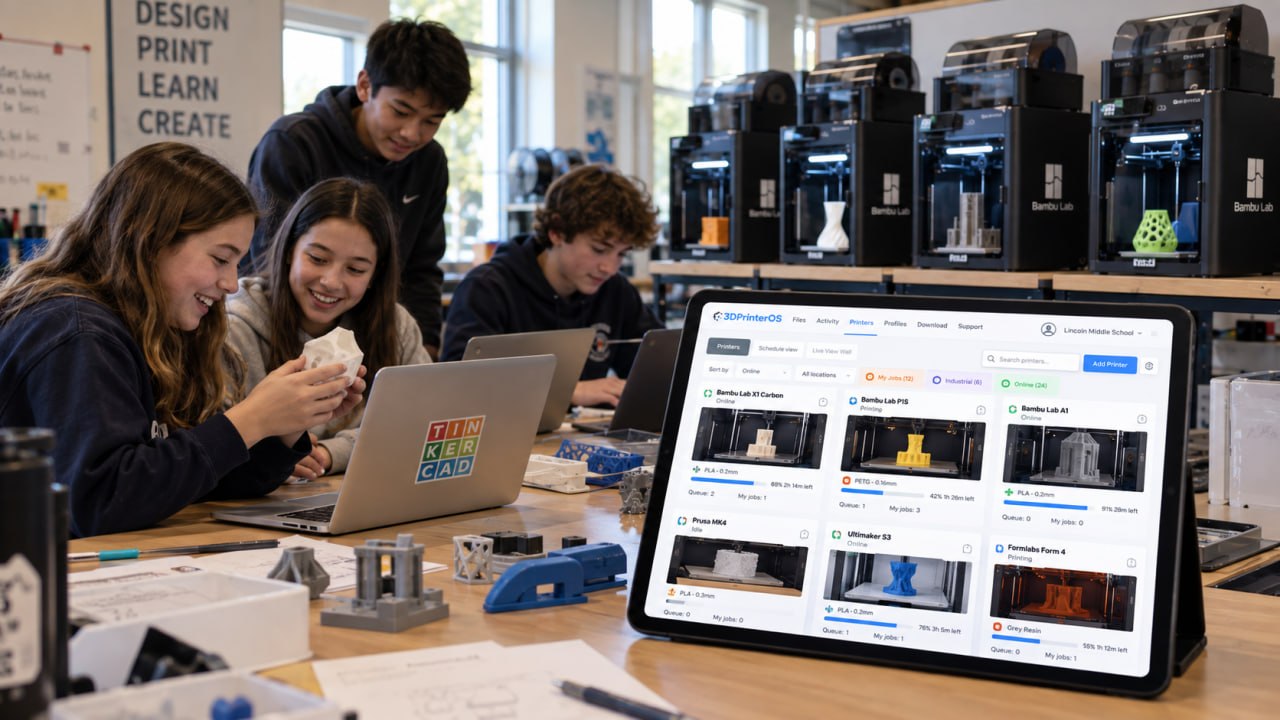


3D printer workflow management software organizes how print jobs move through a shared group of printers: who submits, who approves, which printer runs the job and how usage is recorded. 3DPrinterOS does this in a browser, with remote uploads, shared queues, role-based permissions, live monitoring and reports, so staff stop collecting and prioritizing files by hand.
You can be in your dorm room, or you can be in Africa, but as long as you have an internet connection, you can upload your file. You could be on spring break in Florida, send your file, and when you get back to Lehigh on Monday you can walk in and pick it up.
Users upload files from anywhere with an internet connection, so nobody waits in line at the printer.
Queues shared between users and printers replace first-come, first-served access, and the next free printer takes the job.
Role-based permissions and job approvals decide who can print, on which printers and when.
Status, progress and camera feeds for every printer, with AI alerts when a print fails.
Usage is tied to individual users, so every print has a name, a printer, a material and a cost.
Every part of the printing process is tracked, monitored and audited with reporting tools.
Connect printers through a Raspberry Pi or computer running the 3DPrinterOS client and group them by room or material.
Create user groups and set who can queue, print or approve on each printer group.
Turn on shared queues so jobs go to the next available printer in a group.
Watch jobs live, then report usage by user, printer and department.
Lehigh's Wilbur Powerhouse makerspace grew from 3 printers, 20 users and 150 prints in 2010 to 19 printers, 150 users and 4,377 prints in 2016, the year it adopted 3DPrinterOS. Shared queues replaced first-come, first-served lines, and staff stopped collecting and prioritizing files.
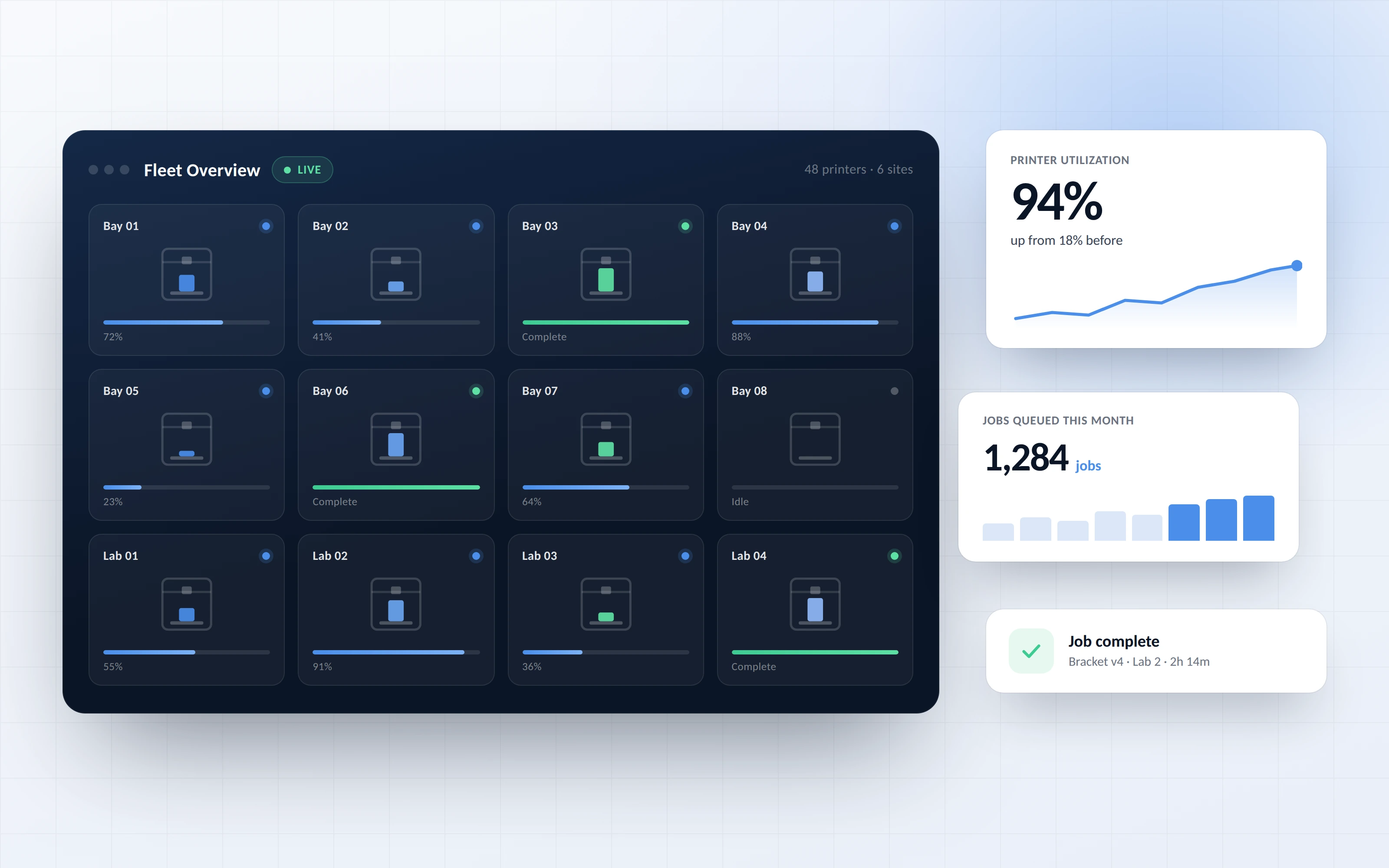
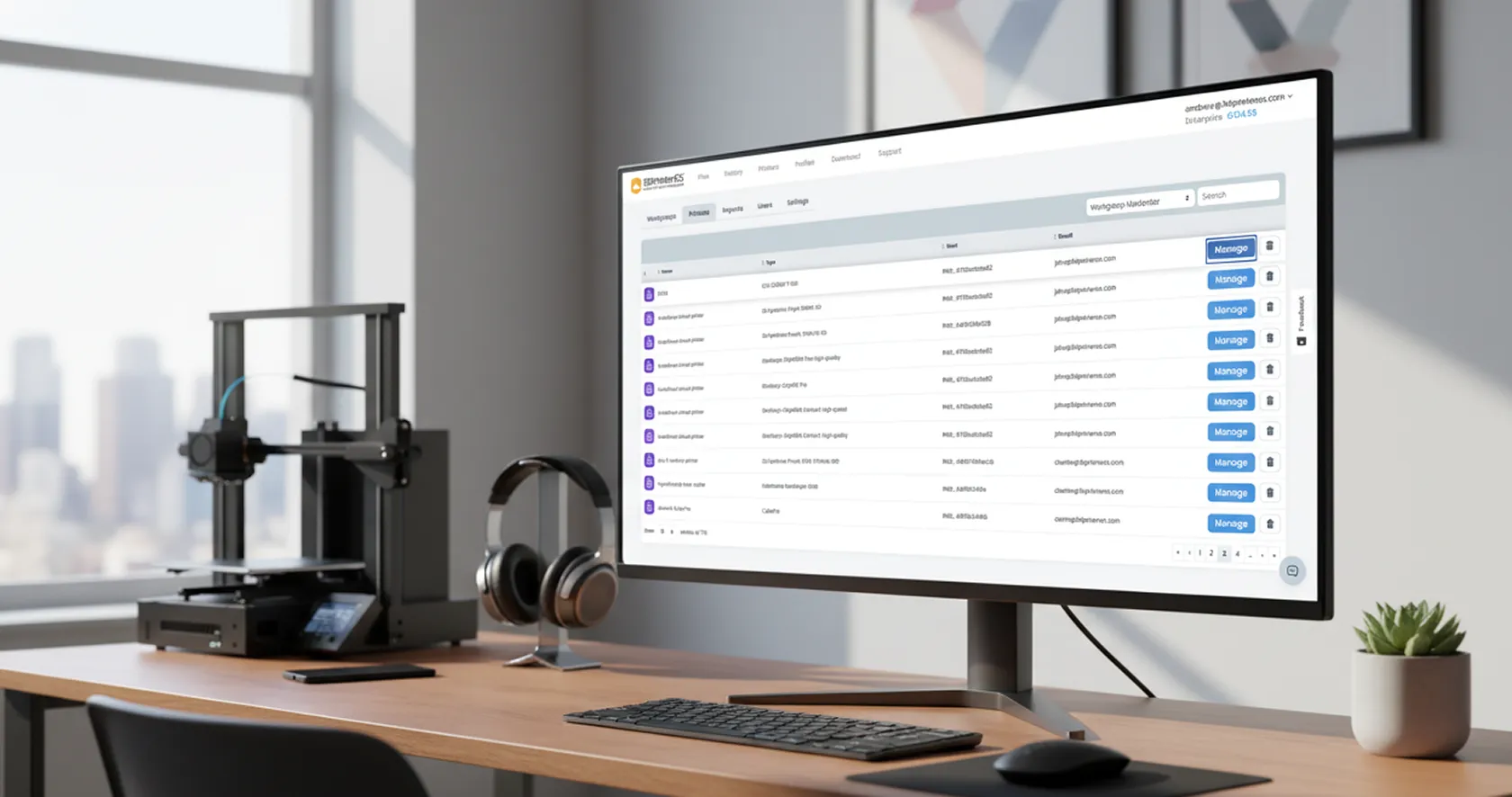
The same workflow covers a single lab or many sites. Admins manage users, queues and reports for the whole fleet from one dashboard, with cloud or on-premise deployment.
It organizes how jobs move through shared printers: submission, approval, queueing, printing, monitoring and reporting. 3DPrinterOS runs that workflow in a browser for every printer and user.
Users send jobs to a printer group instead of one machine, and the next available printer in the group takes the job. This replaces first-come, first-served lines at the printer.
Yes. Users upload files from anywhere with an internet connection and pick up the finished part when it is done.
Yes. Usage is tied to individual users, and every part of the printing process is tracked, monitored and audited with reporting tools.
Yes. 3DPrinterOS is vendor-neutral and supports 200+ printer models, including Bambu Lab, Prusa, Ultimaker, Creality and Dremel.

Used by higher education, enterprises, and OEMs to manage printers, files, and users from a single, cloud-based platform

Control access, users, and print permissions by team or lab
“This close collaboration has enabled Koenigsegg to tailor the platform to their specific needs, resulting in an optimized and user-friendly system for managing their 3D printers.”

Team Leader
Koenigsegg Automotive AB
Book your personalized assessment now and get your free trial.
