


A Raspberry Pi offers a compact way to connect compatible 3D printers to the cloud without keeping a dedicated desktop computer beside each machine. When paired with 3DPrinterOS, it
can serve as a gateway between local printers and a centralized platform for remote monitoring, print queue management, user control, and fleet oversight.
This approach is especially useful for schools, universities, libraries, engineering labs, makerspaces, enterprises, and OEMs that need to manage shared printers without deploying a full workstation at every print station.
This guide explains how to use Raspberry Pi for 3D printing, how the setup works, and how to connect a 3D printer on Raspberry Pi using 3DPrinterOS.
How Do You Use Raspberry Pi for 3D Printing?
To use Raspberry Pi for 3D printing with 3DPrinterOS:
- Create a printer in 3DPrinterOS.
- Request a Raspberry Pi image.
- Install the image on the Raspberry Pi.
- Connect the Raspberry Pi to the internet.
- Connect the Raspberry Pi to the 3D printer.
- Link the printer to your 3DPrinterOS account.
- Upload files and start printing remotely.
This setup transforms a Raspberry Pi into a cloud-connected gateway that allows remote printer management and print queue control.
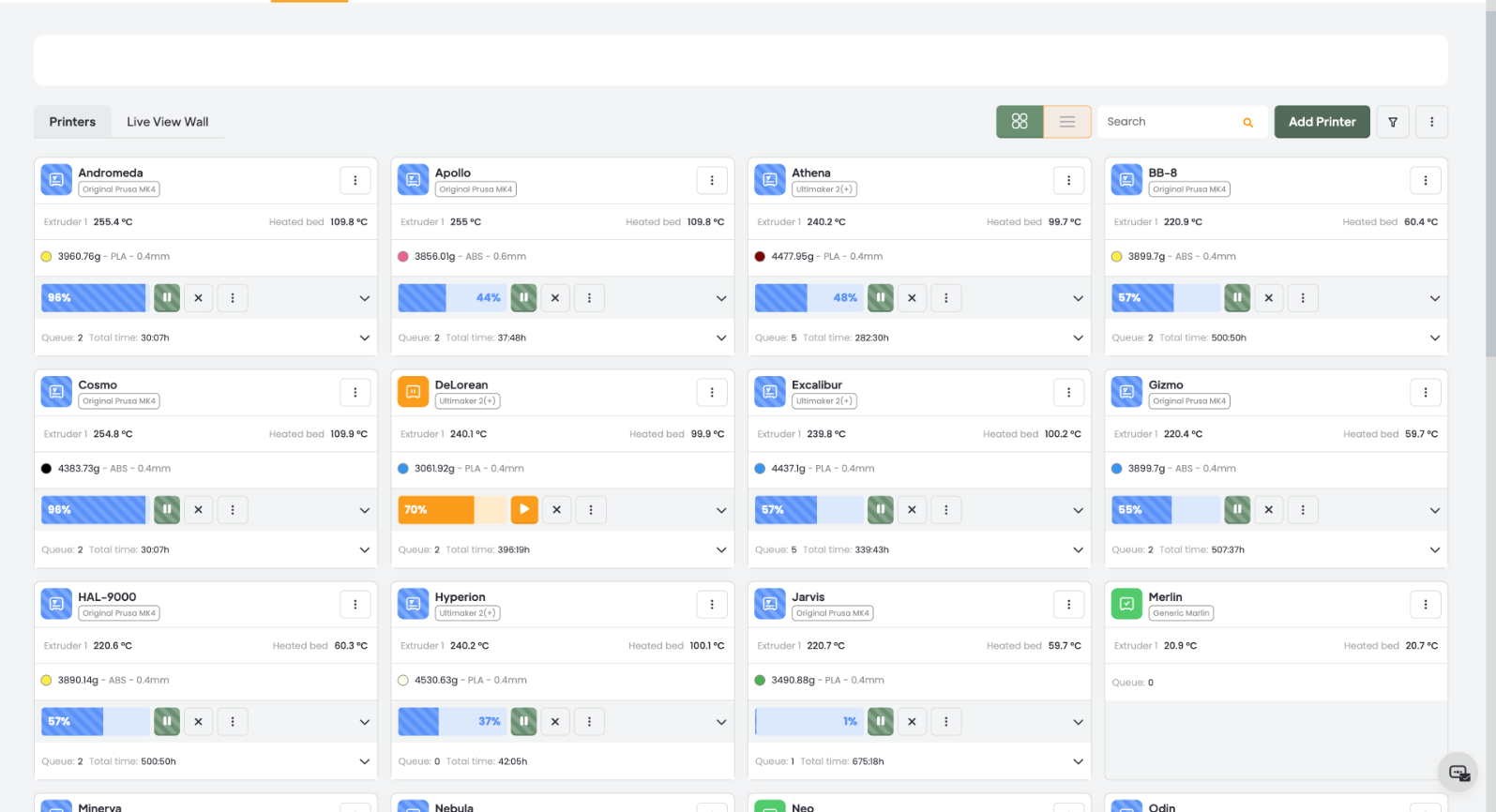
Image Source: https://www.3dprinteros.com/remote-3d-printing or https://app.arcade.software/share/YoHirkjgmLmkYcK2u6NI?ref=share-link
The Raspberry Pi runs the local 3DPrinterOS client and maintains communication between the connected printer and the cloud platform. Print files, queues, users, and printer activity can then be managed through 3DPrinterOS. The Raspberry Pi functions as the local connection point, while 3DPrinterOS provides the centralized software environment for managing the workflow.
For schools, universities, makerspaces, engineering labs, and manufacturing environments, Raspberry Pi 3D printing provides a simple method for remotely managing printers and monitoring print activity.
<H2>Why Use a Raspberry Pi for 3D Printing?
A Raspberry Pi acts as a bridge between a 3D printer and the cloud. Instead of requiring a dedicated computer to remain connected at all times, the Raspberry Pi handles communication between the printer and 3DPrinterOS.
Research published in the Fayoum University Journal of Engineering demonstrates how Raspberry Pi can serve as the central control system for an FDM 3D printer while supporting wireless networking, remote control, and more advanced software capabilities. In the study, researchers integrated Raspberry Pi into a large format printer with a build volume of 500 × 500 × 520 mm³, showing that compact embedded hardware can support practical 3D printing control and connectivity beyond small desktop applications.
<H2>Benefits of a Raspberry Pi 3D Printer Setup
- Lower hardware costs
- Reduced power consumption
- Remote printer monitoring
- Cloud-based print management
- Centralized print queue access
- Scalable deployment for multiple printers
- Simplified classroom and makerspace management
These advantages make Raspberry Pi devices particularly useful in educational and collaborative environments where multiple users share printing resources.
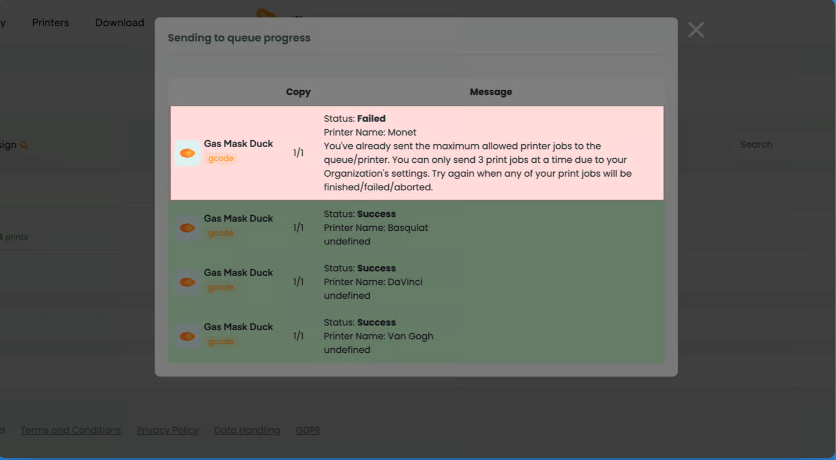
Image Source: https://www.3dprinteros.com/3d-print-queue-management-software or https://app.arcade.software/share/KOO0Q3tBq8Qoaz0rSgQM?ref=share-link
<H2>What You Need Before You Begin
Before creating a 3D printer on Raspberry Pi, make sure you have:
Requirement
Purpose
Compatible Raspberry Pi device
Connects the printer to the 3DPrinterOS cloud platform
SD Card
Stores Raspberry Pi image
Internet Connection
Enables cloud communication
USB Cable
Connects printer to Raspberry Pi
3DPrinterOS Account
Printer management platform
Compatible 3D Printer
Device being connected
Preparing these components beforehand helps streamline the installation process and reduces setup issues.
<H2>How to Create and Install a Raspberry Pi Image for 3DPrinterOS
The following walkthrough shows how to create a Raspberry Pi image, install it, and connect your 3D printer to the cloud using 3DPrinterOS.
Step 1: Open the Printers Tab
In 3DPrinterOS click on the Printers tab.
Step 2: Add a New Printer
Click Add New Printer.
Step 3: Select Connection Type
Choose: My Local 3D Printer Connected to My PC
Step 4: Request the Raspberry Pi Image
Choose Raspberry Pi and click: Request RPi Image
Step 5: Wait for Image Generation
Wait for generation of the Raspberry Pi image.
The image will be sent to your email, typically within 30 minutes or less.
Step 6: Install the Raspberry Pi Image
Follow the instructions provided with the image to complete installation.
Installing the image configures the Raspberry Pi to communicate directly with the 3DPrinterOS cloud platform.
Step 7: Connect the Raspberry Pi to Your Printer
Plug your 3D printer into the Raspberry Pi.
Make sure the Raspberry Pi is connected to the internet before connecting the printer.
Step 8: Start Printing
Once connected, the printer can receive jobs through 3DPrinterOS.
Users can upload models, monitor printer activity, manage print queues, and access cloud-based printing workflows from a centralized dashboard.

Image Source: https://www.3dprinteros.com/3d-printing-k12-schools or https://app.arcade.software/share/YoHirkjgmLmkYcK2u6NI?ref=share-link
<H2>Common Use Cases for Raspberry Pi 3D Printing
<H3>Educational Institutions
K12 schools, high schools, school districts, universities, and libraries can use Raspberry Pi gateways to connect compatible printers without installing a dedicated computer at every station. Instructors and administrators can then manage shared access, review print queues, and monitor printer activity through 3DPrinterOS.
<H3>Makerspaces and Libraries
Community makerspaces and libraries often support users with different experience levels. Centralized printer access and queue visibility can reduce scheduling conflicts while giving administrators greater oversight of shared equipment.
<H3>Engineering and Research Labs
Engineering teams can use cloud connected printers to coordinate prototypes, monitor active jobs, and manage printer availability across departments. This is especially useful when teams operate in different buildings or locations.
<H3>Multi-Printer Environments
Depending on printer compatibility, hardware capacity, and the recommended deployment architecture, Raspberry Pi devices can support scalable printer connectivity across labs and print environments. Organizations should work with 3DPrinterOS to determine whether each printer should use a dedicated gateway or whether several compatible printers can share one device.
<H3>OEM and Manufacturing Environments
OEMs and manufacturing organizations can connect compatible desktop printers to a centralized workflow for prototype production, tooling, fixtures, and low volume parts. User controls and fleet visibility help maintain more structured operations as printer deployments grow.
<H2>Troubleshooting Raspberry Pi 3D Printer Connections
If your Raspberry Pi 3D printer setup is not functioning as expected, check the following:
Verify Internet Connectivity
Confirm the Raspberry Pi has an active internet connection.
Check USB Connections
Ensure the printer is properly connected to the Raspberry Pi.
Confirm Image Installation
Verify that the correct Raspberry Pi image was installed successfully.
Check Power Supply
Insufficient power may cause communication issues or device instability.
Restart Devices
Restart both the Raspberry Pi and the printer to refresh connectivity.
<H2>Raspberry Pi and Cloud-Based 3D Printing
One of the primary advantages of using a Raspberry Pi for 3D printing is the ability to access cloud-based workflows. Through 3DPrinterOS, users can remotely manage printers, monitor print progress, organize print queues, and improve visibility across distributed printing environments.
For educational institutions and makerspaces, this approach simplifies printer administration while providing a scalable solution for growing programs.
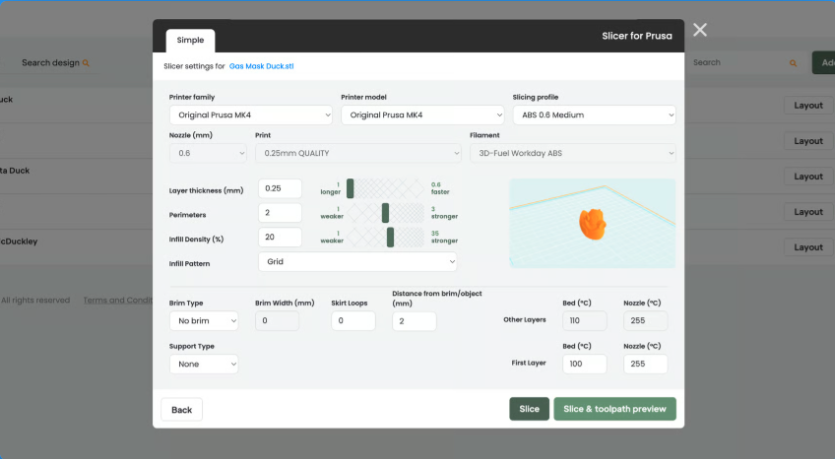
Image Source: https://www.3dprinteros.com/3d-print-queue-management-software or https://app.arcade.software/share/KOO0Q3tBq8Qoaz0rSgQM?ref=share-link
<H3>Conclusion
A Raspberry Pi can provide a compact connection point between compatible 3D printers and a centralized cloud workflow. Instead of maintaining a dedicated computer at every printer station, organizations can use Raspberry Pi devices with 3DPrinterOS to support remote printing, centralized print queues, printer monitoring, file management, and controlled user access.
This approach can help K12 schools, high schools, school districts, libraries, universities, makerspaces, enterprises, and OEMs create more scalable printing environments. Through cloud based printer management, role based permissions, fleet oversight, and remote accessibility, 3DPrinterOS helps organizations manage printers, files, and users from one platform.
Book a Demo to discuss Raspberry Pi deployment, printer compatibility, and the right cloud connectivity setup for your 3D printing environment.